
Step 1: Create an enterprise self-built app
Open https://open.feishu.cn/app and create an enterprise self-built app, for example WispTerm-Lab. For international Lark tenants, use https://open.larksuite.com.
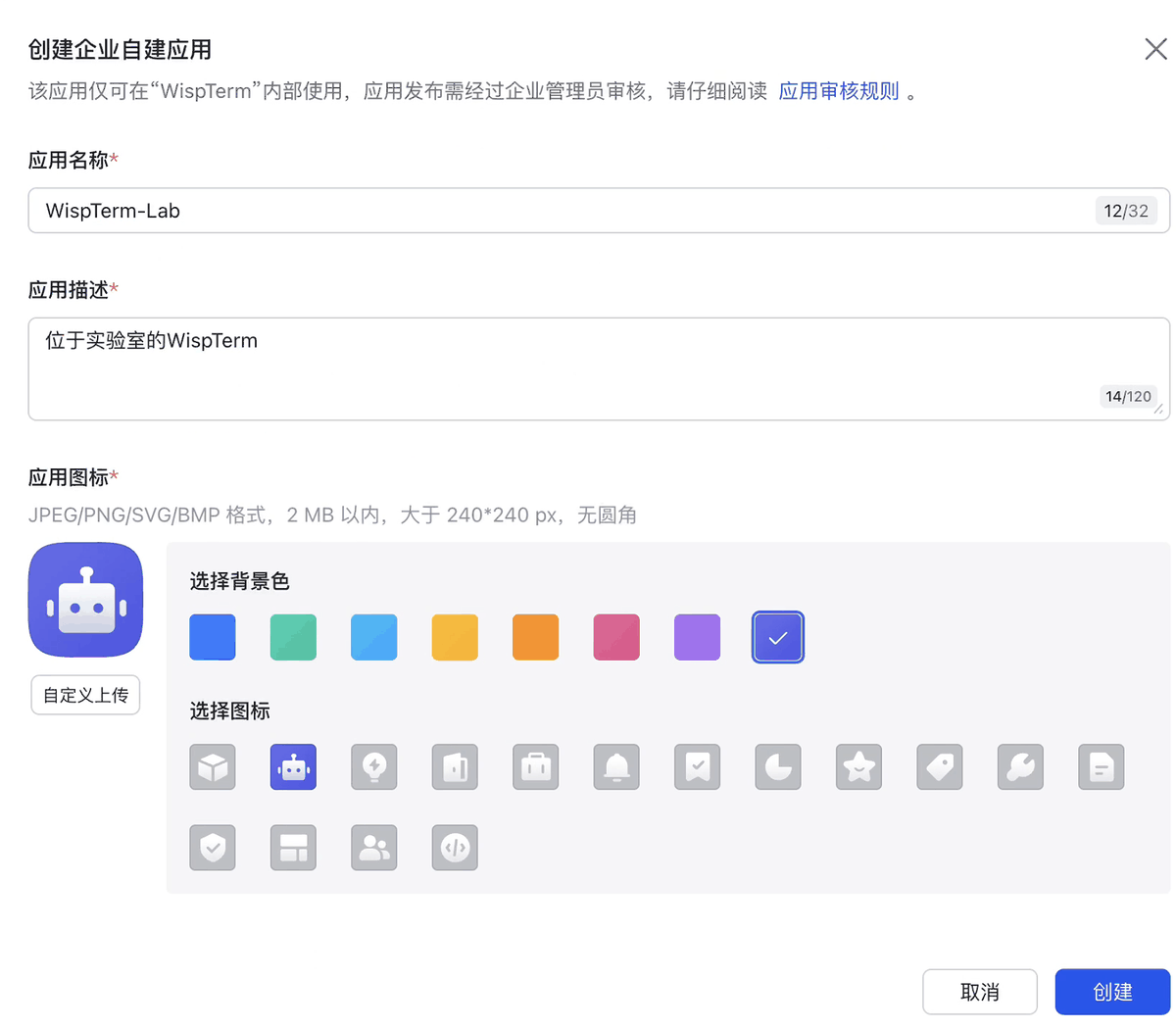
WispTerm-Lab.DeepSeek-first agent sessions
Open a native AI Agent tab that can inspect terminal context, run local PowerShell or cmd tools, work with WSL and SSH sessions, load local skills, and keep approvals in the terminal UI.
WispTerm keeps agent work close to the shell state you already have open. It does not need a separate browser workspace to understand tabs, split panes, local commands, WSL, and SSH sessions.
The default profile targets OpenAI-compatible Chat Completions at https://api.deepseek.com with deepseek-v4-pro. Use deepseek-v4-flash when you want a faster, lighter profile.
Use /model, /model <name>, the /模型 alias, or the clickable model label to move the current chat or Copilot session to another saved profile. WispTerm summarizes prior context for the new model without changing your global default profile.
Agent tools can list visible terminal surfaces, select the intended tab or panel, run local commands, and type into active REPL, WSL, or SSH contexts.
Tool requests appear in WispTerm before execution when permission is set to ask. Use auto for trusted unattended work that should still stop on protected paths and dangerous commands; use full only when you want the agent to run without those guard prompts.
Agent sessions are persisted so you can reopen work from the command center with Copilot History. The picker groups saved AI Chat and Copilot sidebar conversations by date, searches titles and models, and lets you filter the source with Tab.
Run Export AI Chat Markdown to save the full transcript, or Export AI Chat Markdown Clean to save only user prompts and the final answer without thinking or tool details. WispTerm opens a save dialog and copies the saved path.
Open the session launcher with CtrlShiftT, choose AI Agent, and fill the AI profile. If no profile exists, WispTerm opens this form before the first agent launch.
| Profile name | DeepSeek |
|---|---|
| Base URL | https://api.deepseek.com |
| API key | Your DeepSeek key, or leave empty when DEEPSEEK_API_KEY is set |
| Model | deepseek-v4-pro |
| Protocol | chat_completions; use responses for OpenAI Responses API providers |
| Thinking | enabled |
| Effort | max for coding-heavy agent work; high is WispTerm's built-in default |
| Stream | false |
| Agent | true |
When the profile base URL points to DeepSeek and the profile key is empty, WispTerm reads DEEPSEEK_API_KEY from the process environment.
# Windows (PowerShell)
$env:DEEPSEEK_API_KEY = "sk-your-deepseek-api-key"
# Persist for future sessions:
[Environment]::SetEnvironmentVariable("DEEPSEEK_API_KEY","sk-your-deepseek-api-key","User")

# macOS / Linux (shell)
export DEEPSEEK_API_KEY="sk-your-deepseek-api-key"
# Persist: add the export line to ~/.zshrc or ~/.bashrc
DeepSeek V4 models expose a 1M context length and support thinking mode through thinking plus reasoning_effort. Chat Completions remains the default protocol; Responses profiles use instructions, input, and Responses-style function tools.
The agent can help with local work without losing track of which terminal it is controlling. WispTerm requires an explicit terminal selection before write tools target another surface.
Shell commands run as background child processes where possible, so tool execution does not flash a separate console window. The agent uses powershell_exec on Windows and shell_exec on macOS/Linux.
The agent can inspect visible terminal surfaces, save WispTerm SSH profiles with ssh_profile_save, and route writes to the selected WSL or SSH session rather than guessing from focus alone.
Tool calls use surface IDs from terminal_list. Before writing, the agent calls terminal_select to make the target explicit.
Keep ai-agent-permission = ask for normal use. Use auto when ordinary tools may run unattended but private-file and destructive-command guards should remain active. Use full only when you trust both the task and the opened workspace completely.
# AI Chat agent tools
ai-agent-enabled            = true
ai-agent-permission         = ask       # ask | auto | full
ai-agent-command-timeout-ms = 60000
ai-agent-output-limit       = 16384
Skills let you keep reusable instructions next to the terminal. They are loaded into the next request and saved into chat history as replayable context.
WispTerm discovers SKILL.md files under the platform config directory (%APPDATA%\wispterm on Windows, ~/Library/Application Support/wispterm on macOS) in skills/ and plugins/skills/, plus the same two sub-paths next to the executable and in the current working directory.
Skill Center also manages Agent tools. Imported executable tools are stored under the WispTerm config directory with a canonical SKILL.md and keep their own enable state. First-party WispTerm tools, including web, terminal, file, docs, and memory tools, appear in the same inventory; their state is stored separately in agent_tools.json. Turning a built-in tool off hides it from newly built AI request tool lists and blocks stale or hallucinated calls at runtime.
Use $skill-name your request in the AI Agent tab to load that skill for the next request without changing global configuration.
WispTerm also works with external utilities. For example, Claude ChatMap is a local Claude Code history dashboard that groups chats by folder and can resume a selected chat in a WispTerm tab through wisptermctl. Community tools are not bundled with WispTerm.
/commands lists the current command set. Common commands include /model for profile switching, /cwd for the conversation working directory, /permission for agent approval mode, /export for Markdown, /distill for reusable skills, and /remember / /memory / /forget for long-term memory.
/loop repeats a prompt on an interval and /watch schedules daily or one-shot prompts. /clear, /rewind, /resume, /skills, /reload-skills, and /reload-commands cover conversation lifecycle and local command refresh.
Type $websearch <query>, $webread <url | file path>, or $pubmed <query> to run a read-only lookup from the composer without starting a normal AI turn. $websearch uses the configured jina-api-key; $webread can read anonymously; $pubmed uses NCBI PubMed anonymously.
Run New Agent from CtrlShiftP, reopen saved sessions with Copilot History, or export Markdown records from the active AI tab.
Use a Feishu enterprise self-built app to send messages into WispTerm's Copilot/Agent flow. The desktop app opens a long connection at startup, so save the credentials first, then restart WispTerm.
Open https://open.feishu.cn/app and create an enterprise self-built app, for example WispTerm-Lab. For international Lark tenants, use https://open.larksuite.com.
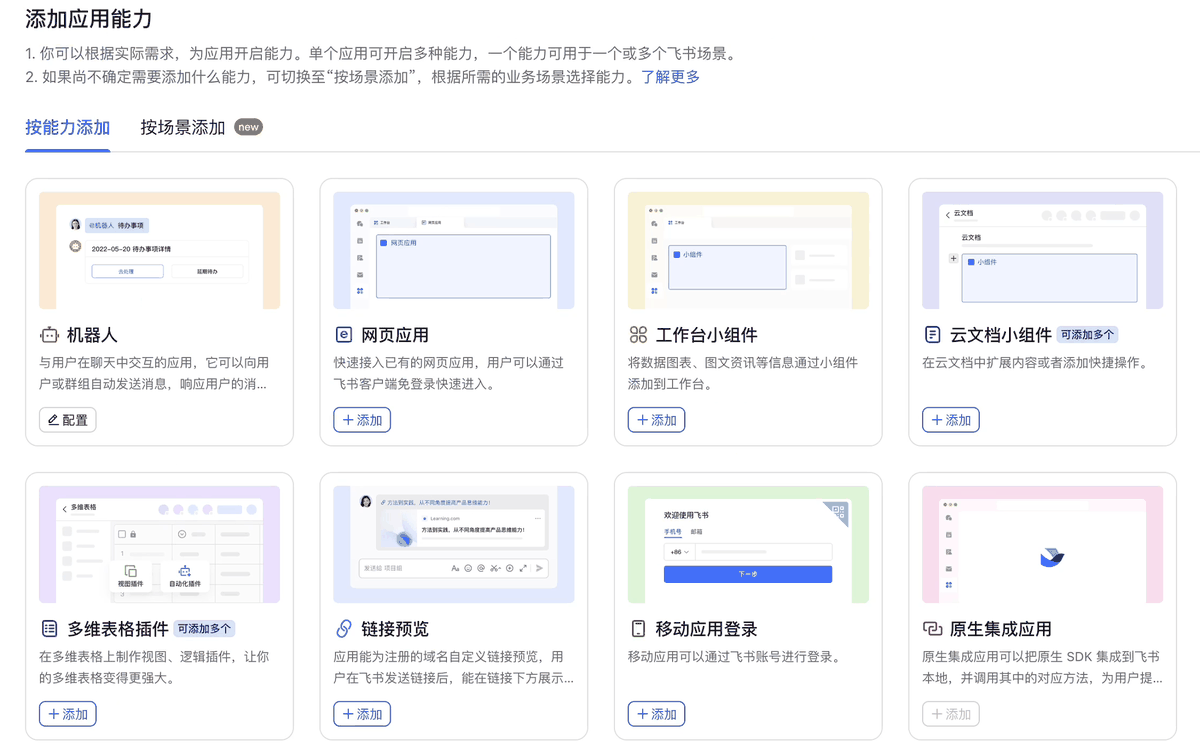
WispTerm-Lab.In Add app capabilities, choose Robot. This is the capability WispTerm uses for chat messages, cards, and user interaction.
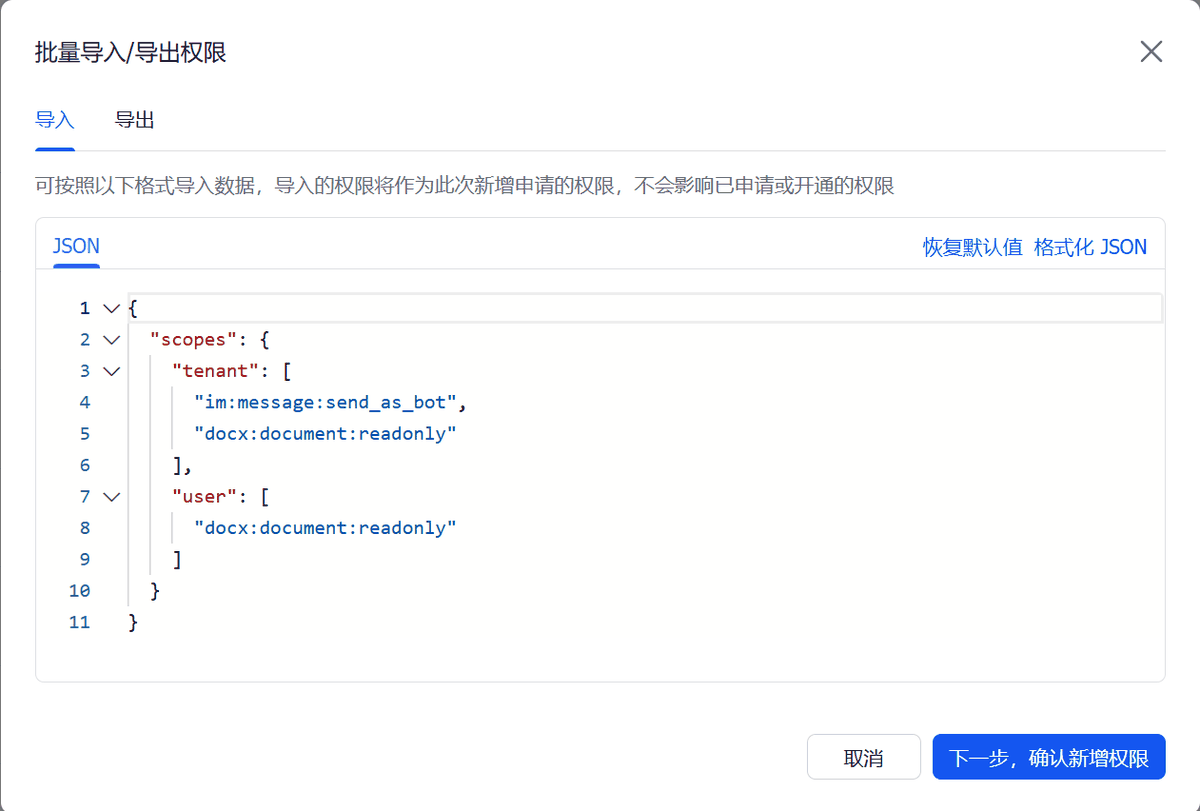
In Permission management, open Bulk import/export permissions, switch to Import, and paste this JSON:
{
  "scopes": {
    "tenant": [
      "application:application:self_manage",
      "application:bot.basic_info:read",
      "application:bot.menu:write",
      "cardkit:card:read",
      "cardkit:card:write",
      "contact:contact.base:readonly",
      "docs:document.comment:create",
      "docs:document.comment:delete",
      "docs:document.comment:read",
      "docs:document.comment:update",
      "docs:document.comment:write_only",
      "docx:document.block:convert",
      "docx:document:readonly",
      "docx:document:write_only",
      "drive:drive.metadata:readonly",
      "im:chat.members:bot_access",
      "im:chat:create",
      "im:chat:read",
      "im:chat:update",
      "im:message.group_at_msg.include_bot:readonly",
      "im:message.group_at_msg:readonly",
      "im:message.p2p_msg:readonly",
      "im:message.pins:read",
      "im:message.pins:write_only",
      "im:message.reactions:read",
      "im:message.reactions:write_only",
      "im:message:readonly",
      "im:message:send_as_bot",
      "im:message:send_multi_users",
      "im:message:send_sys_msg",
      "im:message:update",
      "im:resource",
      "wiki:node:read"
    ],
    "user": [
      "offline_access"
    ]
  }
}
Open Events & Callbacks → Event configuration and select Long connection. Then add im.message.receive_v1. A connection-failed status is normal until WispTerm has the app credentials.
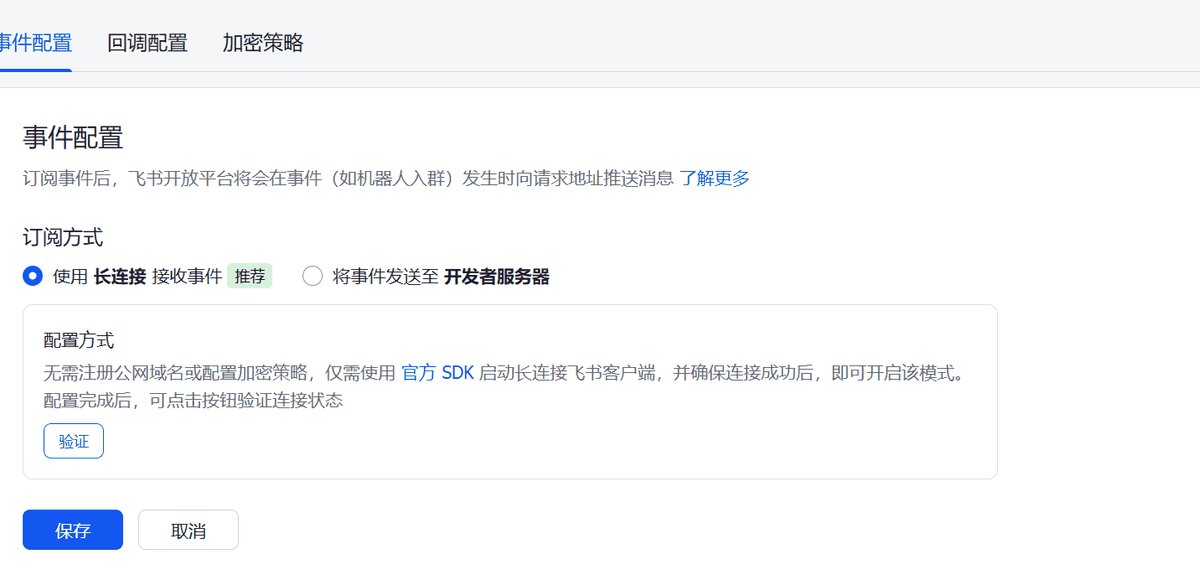
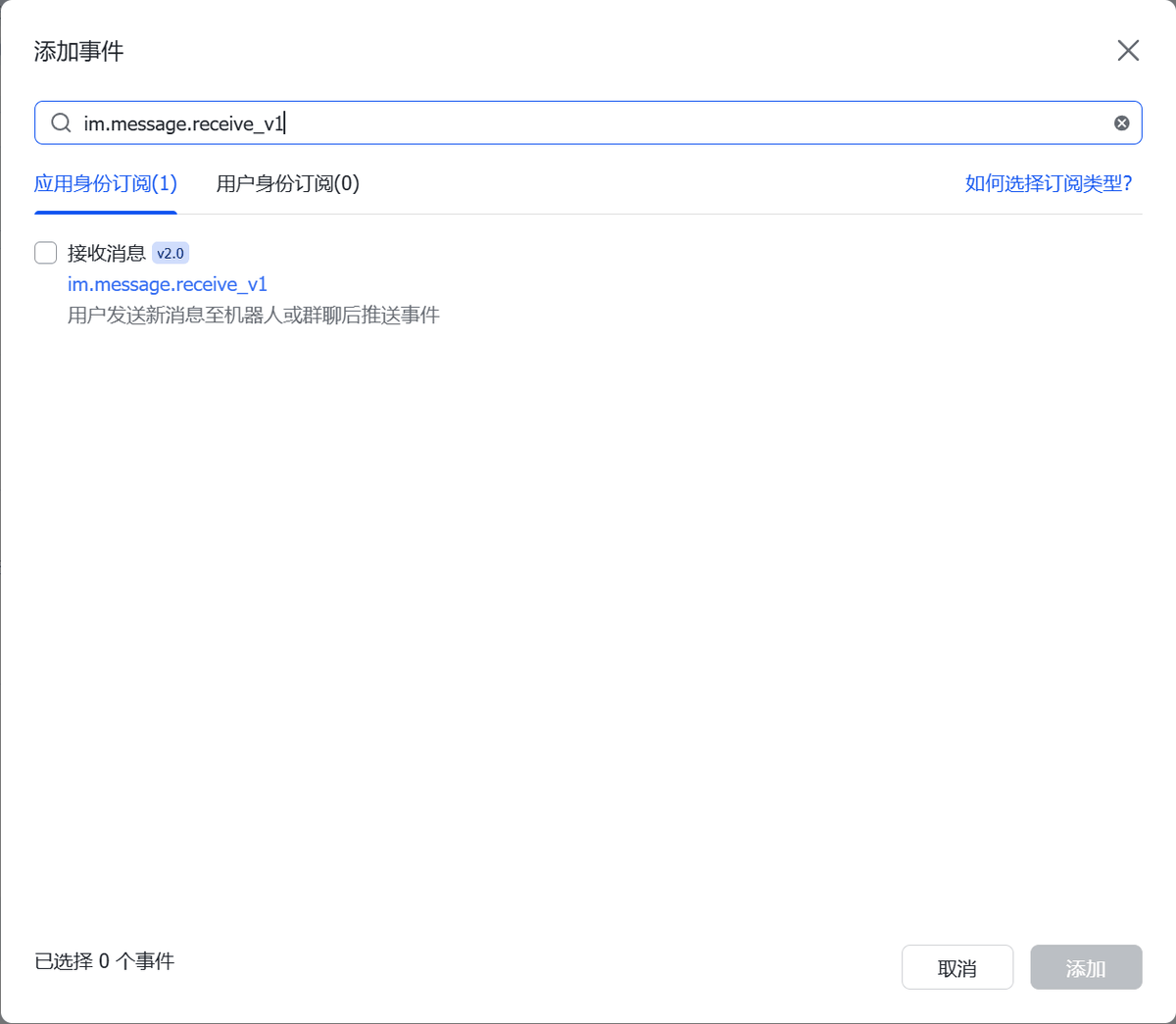
im.message.receive_v1 receive-message event.Create version 1.0.0, select Robot as both the mobile and desktop default capability, add any release note, and submit. Feishu personal tenants usually publish immediately.
After publication, copy the app App ID and App Secret from Feishu.
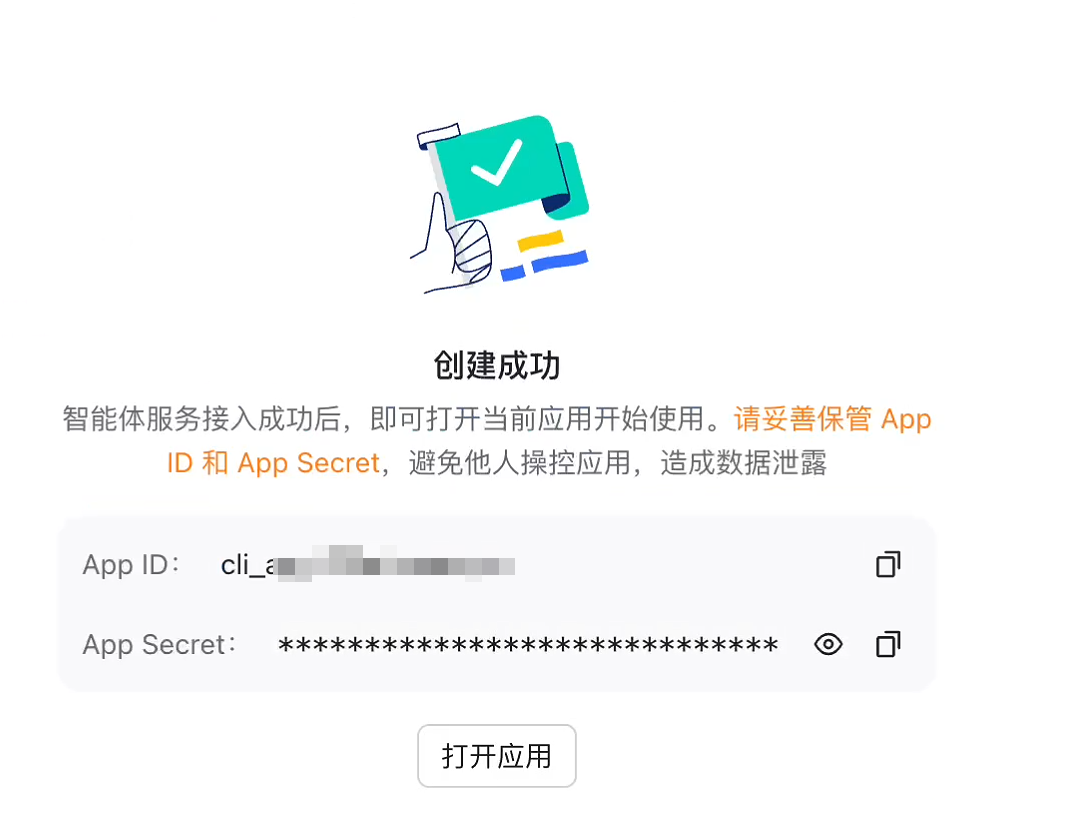
feishu.Feishu: Configure.App ID and App Secret, then save.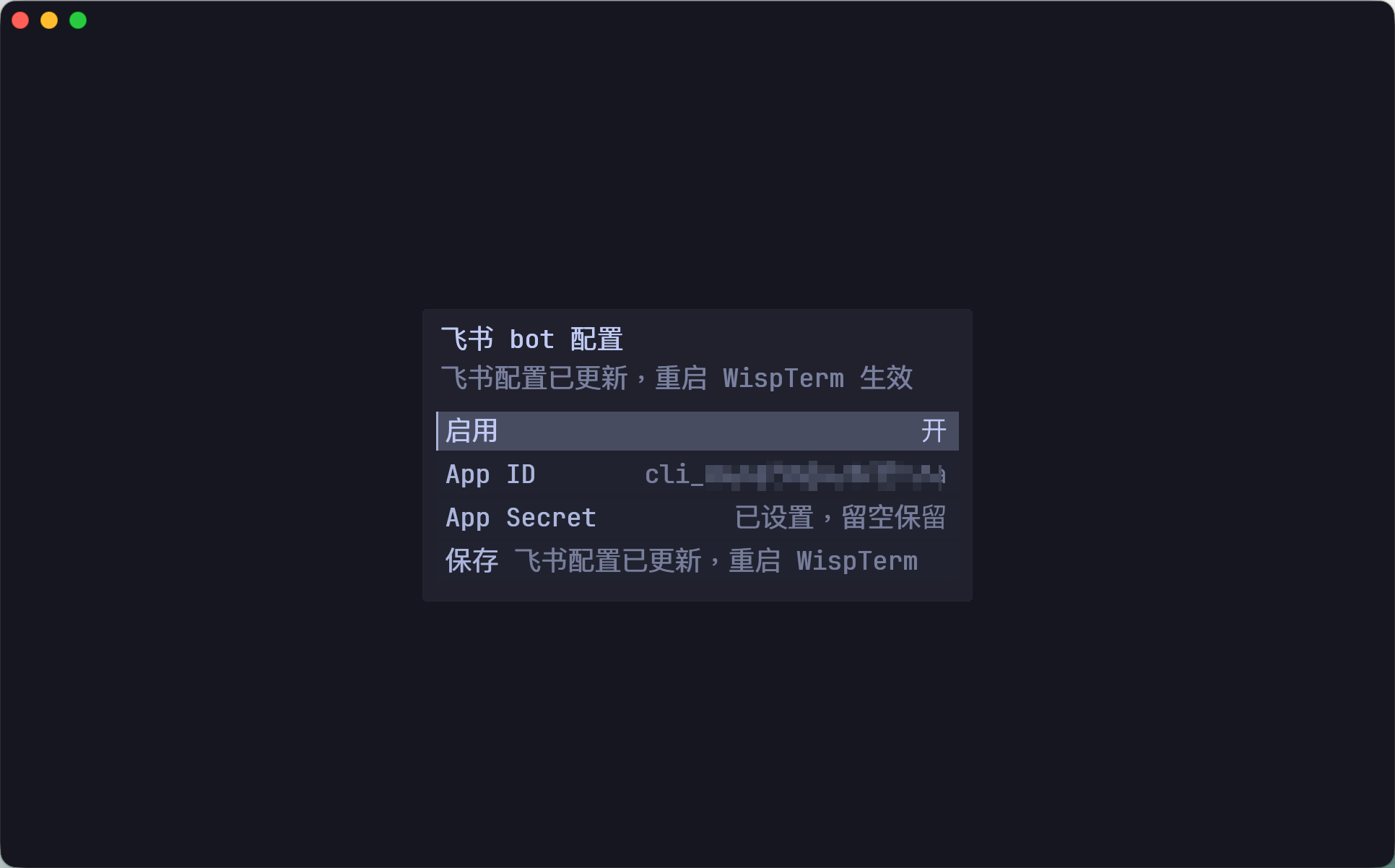
feishu in the command center, save credentials, then restart WispTerm.You can also set feishu-enabled, feishu-app-id, feishu-app-secret, and optionally feishu-allowed-user. Empty ID/secret values fall back to FEISHU_APP_ID and FEISHU_APP_SECRET.
Set DEEPSEEK_API_KEY before launching WispTerm, or save the key in the AI profile.
For 401 errors, check the key and base URL. For payment errors, check the DeepSeek Platform balance.
Set the profile's Agent field to true, and approve tool cards when permission mode is ask.
Use current DeepSeek V4 model IDs such as deepseek-v4-pro or deepseek-v4-flash rather than legacy aliases. To switch a running conversation to a different saved profile, use /model or click the model label.
References: DeepSeek model details and DeepSeek thinking mode.